

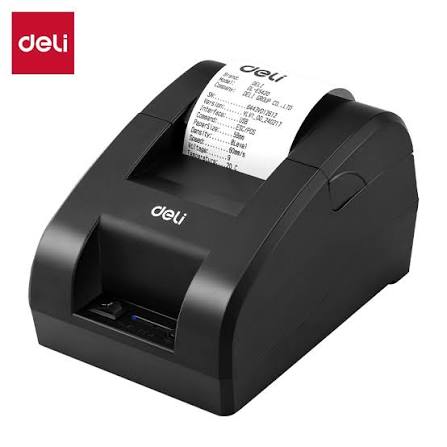
Thermal printers are widely used in retail stores, warehouses, restaurants, healthcare facilities, and logistics operations. They help businesses produce receipts, product labels, shipping documents, and other printed materials quickly. Despite their practical design and relatively simple operation, these devices can occasionally experience problems that affect print quality, connectivity, and overall performance.
Understanding how a Thermal Printer works can make troubleshooting easier when unexpected issues occur. Many common printing problems are related to paper loading, printhead condition, incorrect settings, connectivity, or incompatible media. Identifying the cause and following the correct troubleshooting steps can help restore normal operation and reduce unnecessary downtime.
1. Printer Produces Blank Receipts or Labels
One common problem is when a printer feeds paper but produces no visible text or images. This can interrupt checkout activities and prevent employees from generating important business documents.
Several factors may cause blank output, including incorrect paper loading, unsuitable media, or printhead problems.
Possible causes:
- Thermal paper is loaded in the wrong direction.
- The media is not compatible with the printer.
- The printhead is not heating correctly.
- Printing settings are incorrectly configured.
- The printer is receiving empty or incomplete data.
How to troubleshoot:
First, check whether the thermal paper is installed correctly. Direct thermal paper has a heat-sensitive side that must face the printhead. If the roll is reversed, the printer may feed paper without producing visible content.
Next, verify that the media is compatible with the printer model. You can also try printing a self-test page, if supported, to determine whether the issue comes from the printer or the connected computer or POS system.
If the printer still produces blank output, inspect the printhead and consult the manufacturer’s maintenance instructions.
2. Faded or Light Printing
Faded printing can make receipts and labels difficult to read. This issue is particularly troublesome when documents contain small text, transaction details, or barcodes that must be scanned.
Possible causes:
- Low print density settings
- Dirty or worn printhead
- Poor-quality thermal paper
- Incorrect printing speed
- Incompatible media specifications
How to troubleshoot:
Start by checking the print density or darkness setting in the printer driver or configuration utility. Increasing the density slightly may improve visibility, but excessively high settings can accelerate printhead wear.
Clean the printhead using the method and materials recommended by the manufacturer. Also, test another compatible paper roll to determine whether the media is responsible for the problem.
If the output remains faded after these checks, the printhead may require professional inspection or replacement.
3. Paper Jams During Printing
Paper jams occur when the media becomes stuck inside the printer or fails to move smoothly through the feeding mechanism. They can interrupt printing and sometimes damage labels or paper rolls if employees attempt to remove them forcefully.
Possible causes:
- Incorrect paper loading
- Damaged or poorly wound paper rolls
- Incorrect media dimensions
- Debris inside the paper path
- Worn rollers or feeding components
How to troubleshoot:
Turn off the printer and follow the manufacturer’s instructions for opening the paper compartment. Carefully remove the jammed paper without pulling aggressively against the printhead or cutter.
Inspect the paper path for scraps, dust, or other obstructions. Check that the roll is positioned correctly and that the paper edges are not folded or damaged.
For label printers, verify that the label dimensions and gap settings match the media being used. If jams happen repeatedly, inspect the rollers and feeding mechanism for wear.
4. Printer Does Not Turn On
A thermal printer that fails to power on cannot receive print jobs or complete its normal functions. The issue may be caused by a power supply problem, damaged cable, or internal electrical fault.
Possible causes:
- Loose power connection
- Faulty power adapter
- Damaged power cable
- Defective electrical outlet
- Internal hardware failure
How to troubleshoot:
Check that the power adapter is firmly connected to both the printer and the electrical outlet. Inspect the cable for visible damage and test the outlet using another compatible device.
If the printer uses an external adapter, verify that it matches the manufacturer’s specified voltage and current requirements. Do not use an incompatible power supply.
If the printer remains unresponsive after these checks, contact the manufacturer or a qualified technician rather than opening the internal electrical components.
5. Printer Is Not Connecting to the Computer or POS System
Connectivity problems can prevent a printer from receiving transaction information or printing documents from business applications.
The cause may involve cables, network settings, drivers, or device compatibility.
Possible causes:
- Loose or damaged USB cable
- Incorrect network configuration
- Missing or outdated printer drivers
- Incorrect port selection
- Bluetooth pairing problems
- POS software compatibility issues
How to troubleshoot:
For USB connections, check both cable ends and try another supported port. For Ethernet or Wi-Fi models, verify that the printer and connected device are configured for the correct network.
If using Bluetooth, remove the existing pairing and reconnect the devices according to the manufacturer’s instructions.
Also, confirm that the correct printer driver is installed and that the POS application is sending jobs to the intended device. A self-test can help establish whether the printer itself is functioning independently of the computer.
6. Printing Is Too Slow
Slow printing can reduce efficiency in businesses that handle frequent transactions or large labeling workloads. Although some delays are caused by printer limitations, incorrect settings and connection problems can also affect output speed.
Possible causes:
- High-resolution printing settings
- Complex graphics or large print jobs
- Slow communication interfaces
- Incorrect driver configuration
- Printer operating beyond its recommended workload
How to troubleshoot:
Review the print speed and resolution settings supported by the printer. If the application is producing unnecessarily detailed graphics, simplifying the print layout may improve performance.
Check whether the printer is connected through an appropriate interface and whether the driver is correctly configured.
For high-volume operations, compare the expected workload with the manufacturer’s recommended duty cycle and printing specifications. A printer designed for occasional use may not be suitable for continuous production.
7. Printer Produces Distorted or Incomplete Text
Sometimes a printer produces characters that appear broken, misaligned, incomplete, or different from the information displayed on the computer.
This can affect the readability of receipts, shipping labels, and product identification documents.
Possible causes:
- Incorrect paper or label dimensions
- Unsupported character encoding
- Incorrect print width settings
- Incompatible printer commands
- Software or driver configuration errors
How to troubleshoot:
Check the document layout and confirm that the selected paper size matches the media installed in the printer. Review the printer driver settings and verify that the application uses a supported command language or printing method.
If the issue involves unusual characters, confirm that the correct character set is selected. Updating the driver or application may also resolve compatibility problems.
8. Barcode or QR Code Is Not Scanning
Barcodes and QR codes are commonly printed on product labels, shipping documents, and transaction receipts. If scanning equipment cannot read them, employees may need to enter information manually.
Possible causes:
- Insufficient print darkness
- Low print resolution
- Incorrect barcode dimensions
- Damaged or unsuitable media
- Poor barcode formatting
- Inappropriate printing speed
How to troubleshoot:
Check the barcode dimensions and ensure that the correct symbology and formatting settings are being used. Adjust print density carefully if the bars are too light.
For small labels containing detailed codes, consider whether the printer’s resolution is suitable for the application. Make sure the barcode has sufficient clear space around it and is not distorted by scaling.
Test printed samples using the scanners used in your actual workplace. A barcode that looks clear to the human eye may still fail during scanning.
9. Printer Makes Unusual Noises
Unexpected clicking, grinding, or repeated mechanical noises may indicate a problem with the paper-feeding system, cutter, or other moving components.
Possible causes:
- Paper fragments inside the printer
- Misaligned media
- Obstructed cutter
- Worn rollers or gears
- Mechanical damage
How to troubleshoot:
Stop printing and switch off the printer before inspecting accessible areas. Check for loose paper fragments and confirm that the media is loaded correctly.
If the printer has an automatic cutter, follow the manufacturer’s instructions for clearing obstructions. Avoid using sharp tools or applying excessive force.
Persistent grinding or clicking noises may indicate internal mechanical wear. In that situation, professional servicing is safer than attempting to disassemble the equipment.
10. Labels Are Misaligned or Printed in the Wrong Position
Label printers may occasionally produce content that shifts horizontally or vertically. This can cause barcodes, product descriptions, or other information to appear outside the intended printing area.
Possible causes:
- Incorrect label dimensions
- Incorrect gap or black-mark detection settings
- Improper sensor positioning
- Incorrect calibration
- Label material that is not supported
How to troubleshoot:
First, confirm that the label size configured in the software matches the physical labels installed in the printer.
Next, check whether the printer uses gap sensing, black-mark sensing, or continuous media detection. The selected sensor mode must match the type of label material.
Run the printer’s media calibration procedure if supported. Calibration helps the printer identify label boundaries and position content more accurately.
11. Thermal Paper Fades Over Time
Direct thermal receipts and labels can become lighter after printing, particularly when exposed to unsuitable storage conditions.
This is a characteristic of heat-sensitive media rather than necessarily a printer malfunction.
Possible causes:
- Exposure to high temperatures
- Direct sunlight or ultraviolet light
- Contact with certain chemicals or plastic materials
- Excessive friction
- Inappropriate paper quality
How to prevent fading:
Use thermal paper that meets the printer’s specifications and store unused rolls in a cool, dry place away from direct sunlight.
Printed receipts should also be kept away from heat sources, excessive moisture, and materials that may affect the thermal coating.
For applications requiring long-term readability or greater environmental resistance, thermal transfer printing with suitable ribbon and label materials may be a better option.
12. Printer Frequently Goes Offline
A printer may appear offline even when it is powered on and physically connected. This can prevent employees from sending print jobs through the POS system or computer.
Possible causes:
- Unstable network connection
- Incorrect printer status settings
- Driver problems
- Communication interruptions
- Network address changes
How to troubleshoot:
Check the printer’s power and communication indicators. For network-connected models, verify that the device remains connected to the correct network and has an appropriate network configuration.
On the computer, check the printer status and ensure that the correct device is selected. Restarting the printer and connected computer may resolve temporary communication problems.
If the issue continues, review network settings and driver configuration or contact technical support.
Preventive Maintenance Tips for Thermal Printers
Regular maintenance can reduce the frequency of printing problems and help extend equipment service life. Businesses should establish simple maintenance procedures that employees can follow without interrupting daily operations.
Clean the Printhead Regularly
Dust, adhesive residue, and paper particles can accumulate on the printhead. Clean it using manufacturer-approved materials and follow the recommended procedure.
Use Compatible Printing Media
Always select paper rolls, labels, and ribbons that meet the printer’s specifications. Incompatible materials can cause feeding problems, poor output, or unnecessary component wear.
Check Cables and Connections
Inspect power and data cables periodically. Replace damaged cables and ensure that connectors remain secure.
Keep the Printer Environment Clean
Place the printer in an area with suitable ventilation and protection from excessive dust, moisture, and heat.
Follow Manufacturer Guidelines
Maintenance schedules, cleaning methods, and replacement intervals can vary between models. Refer to the user manual for instructions specific to the equipment.
When Should You Contact Technical Support?
Basic troubleshooting can resolve many common issues, but some problems require professional attention.
Contact the manufacturer or a qualified technician when:
- The printer repeatedly fails to power on.
- The printhead appears physically damaged.
- Mechanical noises continue after basic inspection.
- The automatic cutter remains obstructed.
- Printing defects persist after cleaning and configuration checks.
- Internal electrical or hardware components appear faulty.
Avoid opening sealed components or attempting repairs that may affect warranty coverage.
Conclusion
Thermal printer problems can range from simple paper-loading mistakes to more complex hardware, software, and connectivity issues. Blank receipts, faded printing, paper jams, barcode scanning failures, and alignment errors are among the common challenges businesses may encounter.
Most routine issues can be addressed by checking media compatibility, cleaning accessible components, reviewing printer settings, and verifying connections. Regular preventive maintenance also helps reduce interruptions and maintain consistent output. When problems involve internal hardware or electrical components, professional support is the safest approach to restoring reliable printer performance.
About Post Author

More Stories
Emerging Trends Shaping the Future of the Global Receipt Printer Manufacturing Industry
Understanding Receipt Printer Connectivity Options and Compatibility
Why Thermal Receipt Printers Are Popular in Small and Medium-Sized Businesses