

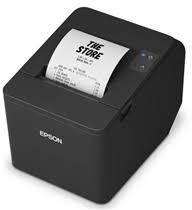
Modern businesses depend on reliable point-of-sale (POS) systems to process payments, manage transactions, and provide customers with accurate purchase records. A receipt printer is an important part of this setup, but its performance depends not only on printing technology and speed. The way it connects to computers, POS terminals, mobile devices, and business networks also affects its usability and overall efficiency.
Choosing a suitable Receipt Printer requires understanding the available connectivity options and checking whether the device works with existing hardware and software. USB, Ethernet, Bluetooth, and Wi-Fi connections serve different operational needs. Businesses that evaluate these interfaces carefully can avoid installation problems, improve printing workflows, and select equipment that supports their current and future requirements.
1. Why Connectivity Matters in Receipt Printing
Connectivity allows a receipt printer to receive transaction information from a connected device or POS application. When a customer completes a purchase, the software sends a print command containing details such as product descriptions, prices, taxes, and payment information.
The printer processes this information and produces the required document. If the connection is unstable or incompatible, printing may be delayed, interrupted, or unsuccessful.
The right connectivity option can help businesses:
- Establish reliable communication between POS devices and printers.
- Reduce unnecessary cable arrangements.
- Support printing from multiple authorized terminals.
- Improve flexibility in printer placement.
- Connect mobile devices with portable printing equipment.
- Simplify equipment integration and management.
Connectivity should therefore be considered an essential purchasing factor rather than an optional technical detail.
2. USB Connectivity: A Simple Wired Connection
USB is one of the most common interfaces used in receipt printers. It provides a direct connection between the printer and a compatible computer, POS terminal, or other supported device.
Main Advantages of USB
- Straightforward installation: USB connections are generally easy to establish.
- Direct communication: The printer receives print jobs from the connected device.
- Stable wired operation: A properly configured connection can provide dependable communication.
- Suitable for individual terminals: It works well when one POS device controls one printer.
Common Applications
Small retail stores, pharmacies, cafés, and independent service businesses often use USB receipt printers. These environments typically have a fixed checkout station where a direct connection is sufficient.
However, USB cables have practical distance limitations. A printer connected directly to one terminal may also be less convenient when several workstations need access to the same device.
3. Ethernet Connectivity: Supporting Network Printing
Ethernet allows a receipt printer to connect to a local area network through a network cable. Once configured, compatible POS terminals and computers can send print jobs to the device through the network.
Benefits of Ethernet
Shared printing access: Multiple authorized devices can send print jobs to a network-connected printer when the POS software supports this arrangement.
Flexible placement: The printer does not need to sit directly beside a single computer, provided an appropriate network connection is available.
Centralized configuration: Network settings can help administrators manage printers within a larger business environment.
Wired communication: Ethernet provides a physical network connection that can be useful where consistent connectivity is important.
Business Applications
Ethernet receipt printers are commonly useful in supermarkets, restaurants, retail chains, and commercial facilities with several POS terminals.
For example, a restaurant may connect a kitchen printer to its local network so that compatible ordering terminals can send food orders to the preparation area. Proper configuration helps ensure that print jobs reach the intended device.
4. Bluetooth Connectivity: Wireless Printing for Mobile Devices
Bluetooth enables compatible receipt printers to communicate wirelessly with smartphones, tablets, and handheld POS terminals. It is particularly common in portable thermal printers designed for mobile transactions.
Key Features of Bluetooth Printing
- Reduces the need for physical data cables.
- Supports compatible mobile POS devices.
- Allows flexible printer placement within the supported connection range.
- Makes portable transaction printing more convenient.
- Can simplify printing in temporary or mobile work environments.
Common Applications
Delivery companies, outdoor vendors, transportation providers, and field service teams may use Bluetooth receipt printers.
For example, a delivery employee can connect a portable printer to a compatible mobile device and issue a payment receipt at the customer’s location. Restaurant employees may also use Bluetooth-enabled printers for tableside transactions.
Businesses should check the supported Bluetooth version, pairing requirements, operating-system compatibility, and practical connection range before purchasing.
5. Wi-Fi Connectivity: Wireless Network Integration
Wi-Fi allows receipt printers to communicate with compatible devices through a wireless local area network. Unlike Bluetooth, which is commonly used for direct connections between nearby devices, Wi-Fi can support communication across a configured business network.
Main Advantages of Wi-Fi
Flexible installation: Printers can be positioned in suitable locations without requiring a direct Ethernet cable.
Network-based access: Multiple authorized devices may send print jobs through the network when supported by the POS system.
Reduced cable requirements: Wireless communication can simplify equipment placement in areas where cable installation is inconvenient.
Integration with existing infrastructure: Wi-Fi printers can work within compatible business networks.
Common Applications
Restaurants, retail outlets, cafés, and service facilities may use Wi-Fi receipt printers when they need flexible installation arrangements.
For example, a restaurant can position a printer near a service or preparation area while allowing compatible POS terminals to communicate with it over the wireless network.
A stable wireless signal, appropriate network configuration, and suitable security settings are important for dependable operation.
6. Comparing Common Receipt Printer Connectivity Options
Each connection type offers different advantages. The following comparison can help businesses understand which interface may suit their requirements.
| Connectivity Type | Connection Method | Main Advantage | Typical Application |
|---|---|---|---|
| USB | Direct wired connection | Simple installation | Single checkout stations |
| Ethernet | Wired local network | Shared network access | Retail chains and restaurants |
| Bluetooth | Short-range wireless connection | Mobile device compatibility | Delivery and field services |
| Wi-Fi | Wireless local network | Flexible printer placement | Restaurants and multi-device POS environments |
The best option depends on the business’s equipment, network infrastructure, printing locations, and software requirements.
7. Understanding POS Software Compatibility
A printer may offer the required connection interface but still fail to work correctly if its software is incompatible with the POS system.
Software compatibility determines whether the POS application can communicate with the printer and send correctly formatted print jobs.
Before purchasing, businesses should review several technical requirements.
Operating System Support
Check whether the printer supports the operating system used by the POS computer, tablet, or other connected device. Some models provide drivers for multiple platforms, while others have more limited support.
Printer Drivers
A printer driver helps the operating system communicate with the printing device. Installing the correct driver is important for recognizing the printer and controlling its functions.
Printing Command Languages
Some receipt printers support command languages such as ESC/POS. Compatibility with the commands used by the POS software can affect receipt formatting, cutting, and other printing functions.
Application Compatibility
Businesses should confirm that their POS application supports the selected printer model or its printing interface. This is particularly important when using specialized retail, hospitality, or accounting software.
8. Hardware Compatibility and Interface Requirements
Connectivity compatibility also depends on the physical ports and communication capabilities of the connected equipment.
For example, a USB printer requires a compatible USB connection or an appropriate supported adapter. An Ethernet printer needs access to a suitable network port or network infrastructure. Bluetooth and Wi-Fi printers require compatible wireless capabilities and appropriate configuration.
Businesses should check:
- Available ports on POS terminals and computers
- Supported USB connection standards
- Ethernet network requirements
- Bluetooth pairing compatibility
- Wi-Fi frequency and network requirements
- Power supply and cable specifications
Checking these details before installation can prevent avoidable connection problems.
9. Network Configuration and Security
Network-connected receipt printers need appropriate configuration to communicate reliably with POS devices. Ethernet and Wi-Fi models may require settings such as IP addresses, network names, passwords, and other communication parameters.
In larger business environments, administrators may assign fixed or reserved IP addresses to printers. This can make it easier for POS software to locate the correct device.
Security is also important because network-connected equipment forms part of the business’s technology environment. Recommended practices include:
- Using secure Wi-Fi authentication.
- Changing default administrative credentials where applicable.
- Restricting access to authorized devices.
- Keeping printer firmware updated when supported.
- Separating business equipment from public guest networks when appropriate.
These measures can help reduce unauthorized access and improve network reliability.
10. Connecting Multiple POS Terminals to One Printer
Some businesses operate several checkout terminals but want to use shared printing equipment. Network connectivity can support this arrangement when the printer, POS software, and network configuration allow it.
For example, a restaurant may have several ordering stations that send kitchen orders to one designated printer. A retail business may also configure multiple terminals to use a shared printer in a service area.
Before using this setup, businesses should confirm:
- Whether the printer supports shared network printing.
- Whether the POS software can route print jobs correctly.
- Whether simultaneous print requests are handled properly.
- Whether each terminal can identify the correct printer.
- Whether the network can support the expected communication volume.
A well-planned setup can reduce equipment duplication, but poor configuration may cause misplaced or delayed print jobs.
11. Common Connectivity Problems and Their Solutions
Connection problems can interrupt checkout activities and delay transaction processing. Understanding common causes makes troubleshooting easier.
Printer Not Detected
A printer may not appear on the connected computer because of an incorrect driver, loose cable, disabled interface, or configuration problem.
Solution: Check the physical connection, confirm that the printer is powered on, and install the correct driver.
Bluetooth Pairing Failure
Wireless pairing may fail because the printer is already connected to another device, is outside the supported range, or is not in pairing mode.
Solution: Follow the manufacturer’s pairing instructions, check the device list, and reconnect using the correct procedure.
Wi-Fi Connection Problems
A Wi-Fi printer may lose communication because of weak signal strength, incorrect network credentials, or incompatible network settings.
Solution: Verify the wireless configuration, check signal coverage, and confirm that the printer and POS device are connected to the appropriate network.
Network Printing Delays
Print jobs may be delayed because of network congestion, incorrect IP settings, or software communication issues.
Solution: Review network connectivity, check the printer’s assigned address, and verify the POS application’s printer configuration.
Incorrect Receipt Formatting
A printer may receive a job but produce incomplete or incorrectly formatted content.
Solution: Check the selected paper width, driver settings, command compatibility, and POS receipt template.
12. Choosing the Right Connectivity Option for Different Businesses
Different business environments require different connection arrangements.
Small Retail Stores
USB receipt printers are often sufficient for small shops with one fixed checkout terminal. They offer a simple connection without requiring advanced network configuration.
Restaurants and Cafés
Ethernet and Wi-Fi models can support flexible printing arrangements across cashier stations and preparation areas. Bluetooth printers may also be useful for mobile payments.
Supermarkets
Larger supermarkets may benefit from network-connected printers that work with multiple checkout terminals. The choice depends on the POS infrastructure and the number of printing stations.
Delivery and Field Services
Bluetooth-enabled portable printers are often suitable for employees who need to print receipts away from a fixed workstation.
Multi-Location Businesses
Businesses operating several branches should evaluate printers that support consistent configuration, remote management where available, and compatibility with their centralized POS software.
13. Practical Steps for Testing Compatibility Before Purchase
Testing a printer before deploying it across a business can reduce integration risks.
A practical evaluation process includes:
- Confirm the printer’s supported connection interfaces.
- Check compatibility with the existing POS software and operating system.
- Install the appropriate driver or configure the supported printing interface.
- Connect the printer using the intended USB, Ethernet, Bluetooth, or Wi-Fi method.
- Print sample receipts containing text, prices, and other required information.
- Test automatic cutting and paper handling if these features are included.
- Evaluate performance during repeated printing.
- Confirm that employees can complete basic troubleshooting tasks.
Testing the actual business workflow is more useful than relying only on a product specification sheet.
Conclusion
Receipt printer connectivity plays an important role in the performance and flexibility of modern POS systems. USB connections are suitable for straightforward single-terminal setups, Ethernet supports wired network printing, Bluetooth provides convenient mobile connectivity, and Wi-Fi offers flexible integration with compatible wireless networks.
However, selecting the correct interface is only part of the decision. Businesses must also evaluate operating-system support, printer drivers, POS software compatibility, network configuration, and security requirements. By checking these factors before purchasing and testing the equipment during installation, businesses can establish reliable printing workflows that support efficient transactions and consistent daily operations.
About Post Author


More Stories
Emerging Trends Shaping the Future of the Global Receipt Printer Manufacturing Industry
Why Thermal Receipt Printers Are Popular in Small and Medium-Sized Businesses
Fire Spray Nozzle: Applications and Benefits in Fire Protection Systems